

Intercom Emulator
Test door access with the Monarch intercom emulator
The Monarch emulator is a software version of a ButterflyMX intercom. It lets you test granting access to a door without a physical intercom. When your integration sends a door release request, the emulator responds the way a real intercom would, so you can verify your integration before moving to production.
This guide walks you through downloading the emulator, finding your intercom in the Sandbox Dashboard, and launching the emulator pre-configured for that device.
Prerequisites
You will need:
- A ButterflyMX Sandbox account with at least one building and intercom device
- A computer running Windows, macOS, or Linux
- Intercom emulation and Monarch software downloads enabled for your building. ButterflyMX turns these on for you. If you do not see these options in your Sandbox account, reach out to your ButterflyMX representative.
Step 1: Download the emulator
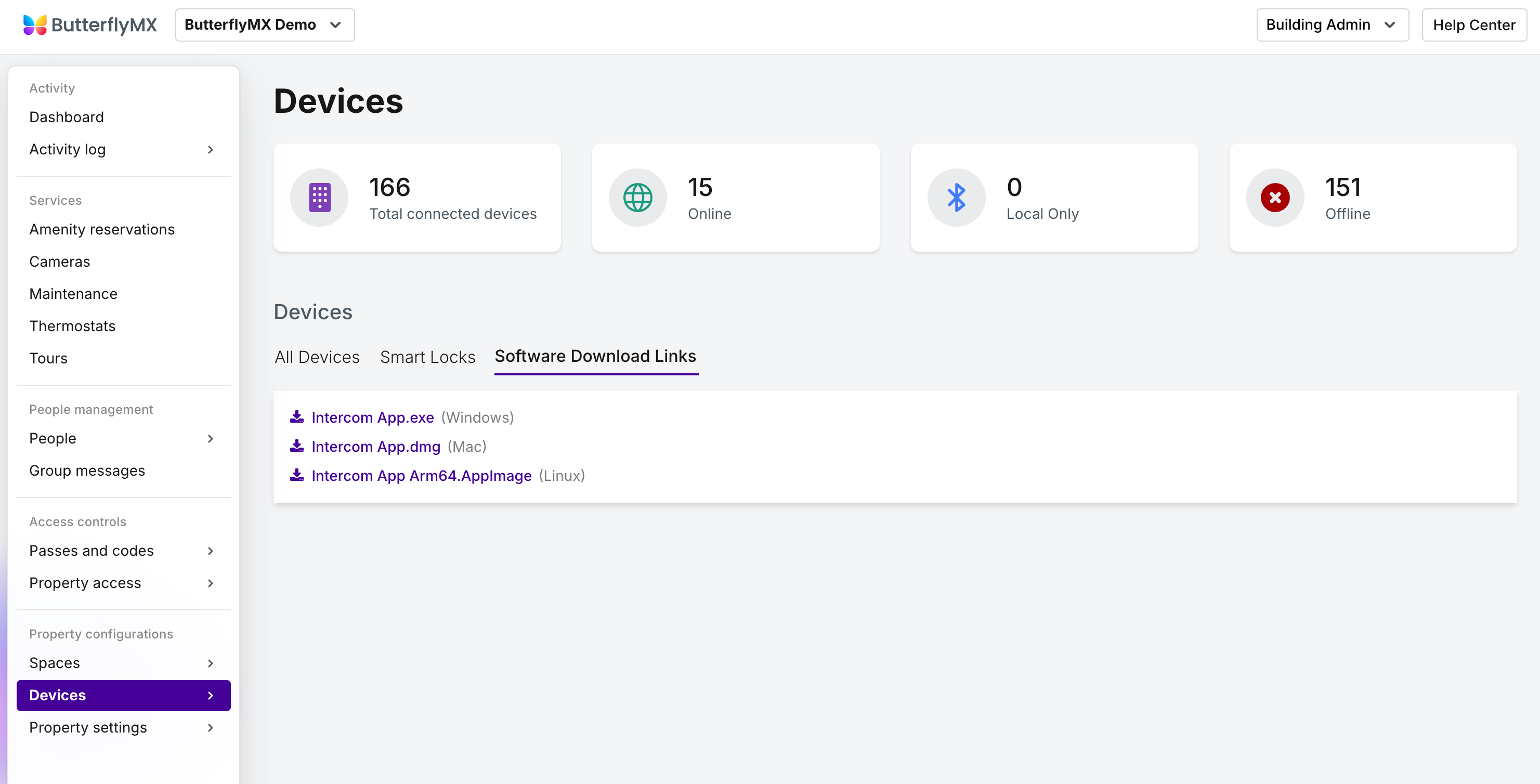
Download the Monarch app for your operating system.
- Sign in to the Sandbox Dashboard and open your building.
- Go to Devices.
- Open the Software Download Links page.
- Choose the file that matches your computer:
| Operating system | File |
|---|---|
| Windows | Intercom App.exe |
| Mac | Intercom App.dmg |
| Linux | Intercom App Arm64.AppImage |
- Install the app as you would any other software.
Step 2: Find your intercom and check its serial number
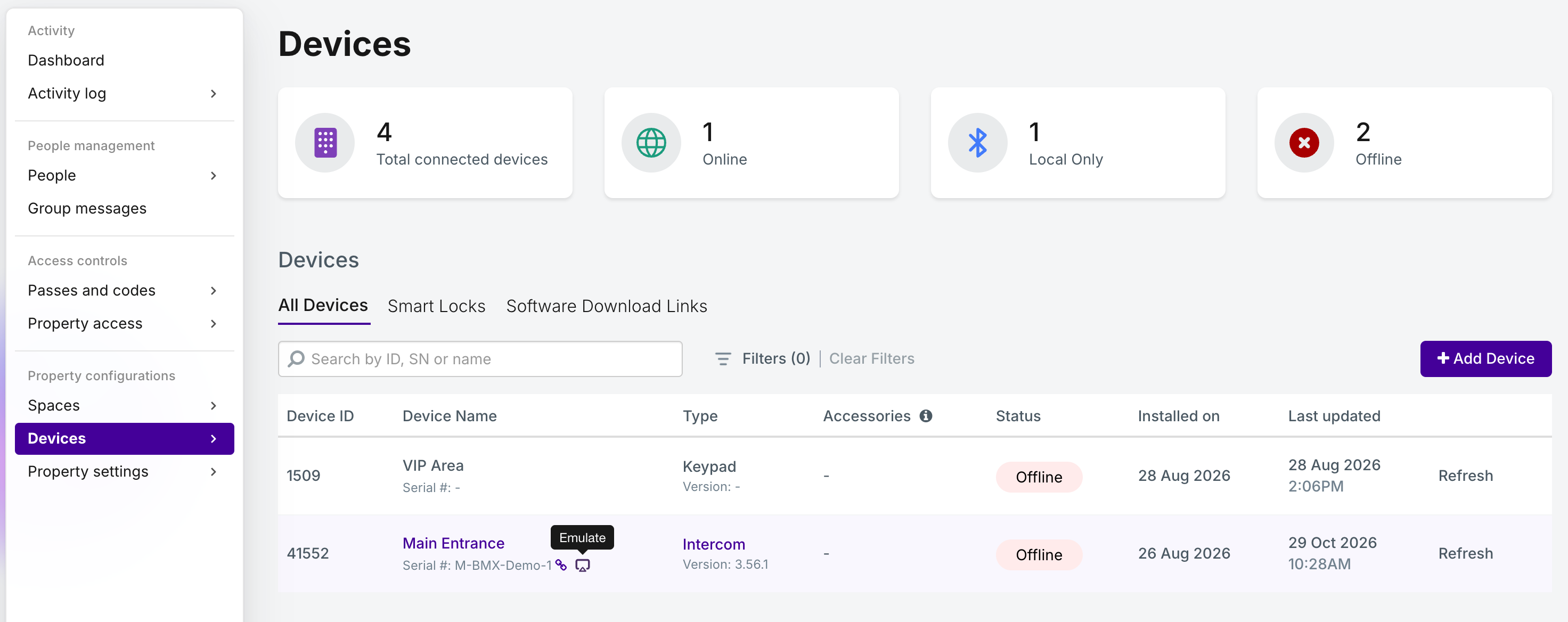
The emulator configures itself from an intercom device in your building. The device must have a serial number.
- On the Devices page, open All Devices.
- Find your intercom in the list.
- Check the Serial column. If a serial number is there, go to Step 3.
- If the serial is blank, edit the intercom, enter a serial number, and select Save.
Serial numbers must be unique in each environment. If you see "Serial number has already been taken," pick a different one. A simple pattern works well: your building name plus a number, such as My-Test-Building-1.
Step 3: Click Emulate
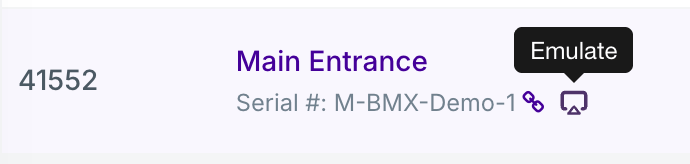
Once an intercom has a serial number, an Emulate icon shows next to it on the Devices list.
-
Select the Emulate icon next to your intercom.
-
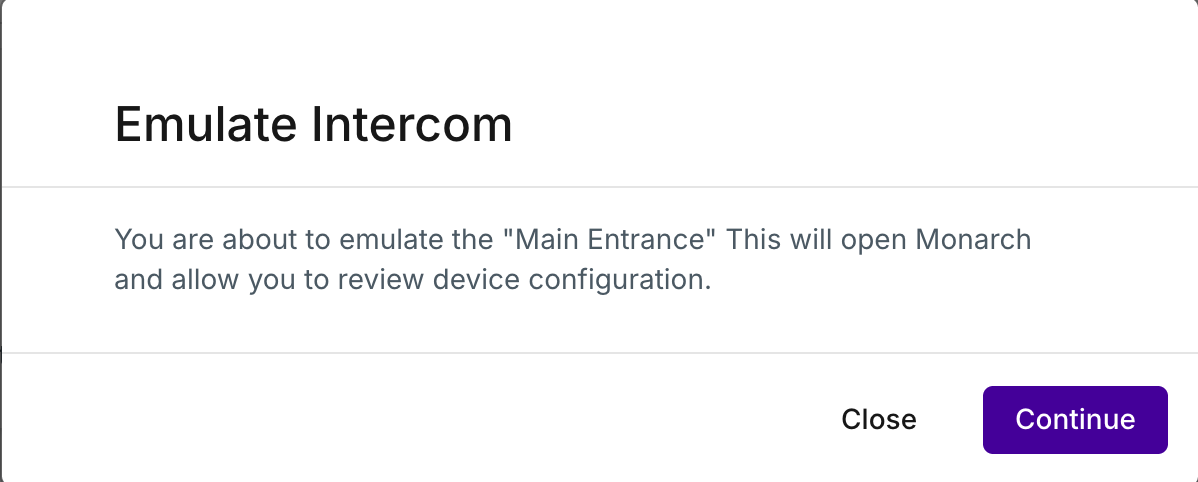
A box titled Emulate Intercom opens. Select Continue.
-
The Monarch app opens on your computer. It is already set up for the intercom you picked, so there is nothing to configure.
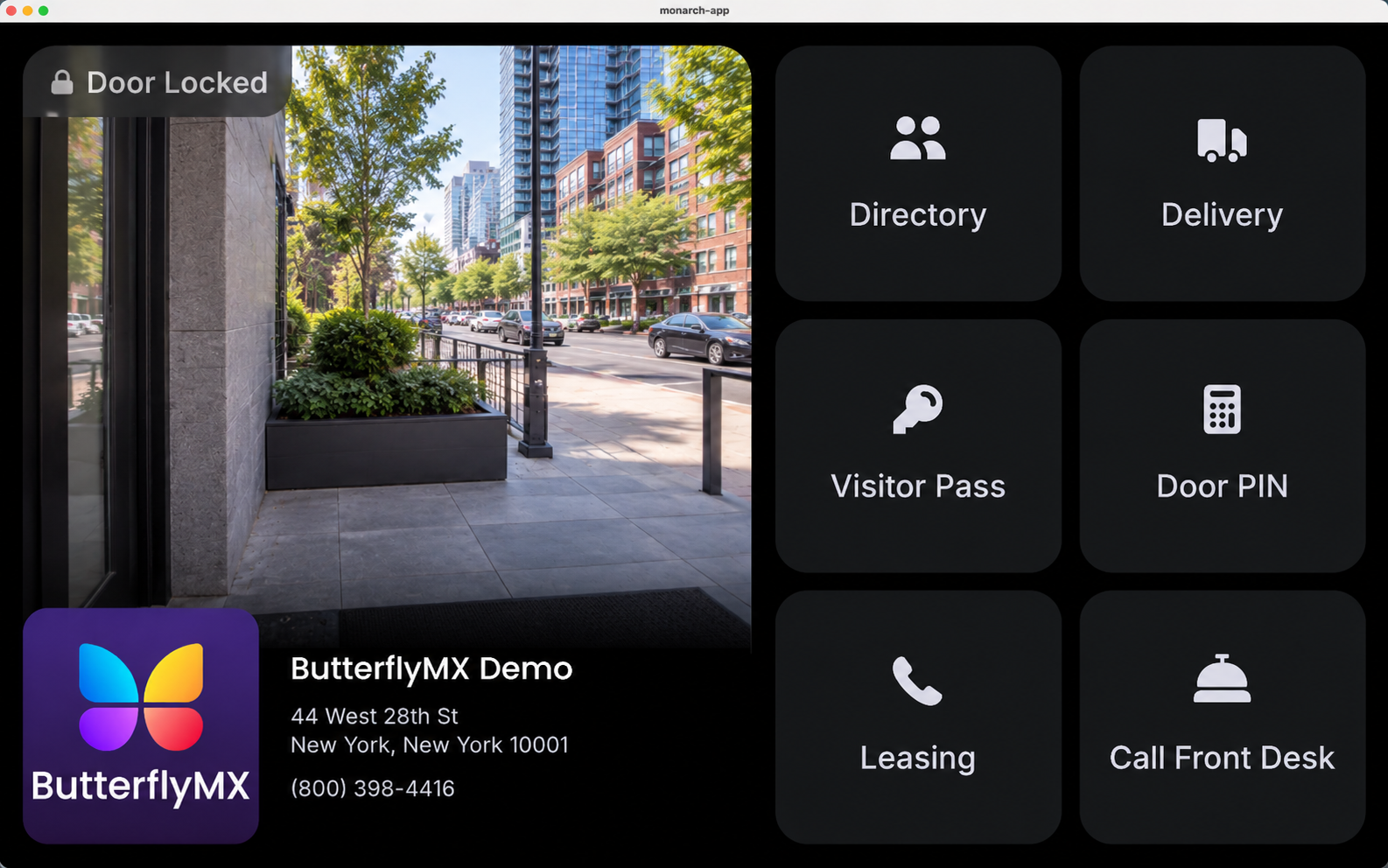
When the app says "Startup complete," you are ready to test. You will see the door status, a live video feed, and tiles for Directory, Delivery, Visitor Pass, and Door PIN (though tiles may vary depending on your building's configuration).
Step 4: Test granting access
Keep Monarch open while you test. You can try either of these methods.
Send a door release request through the API
- Collect your
tenant_idand theaccess_point_idfor the Access Point that includes your emulated intercom. The Grant Access guide shows how to get these values. - Send a door release request, as shown in the example below.
- Watch the emulator. When the request succeeds, it plays an unlock chime. You can match the sound to the request in your own logs.
Example request
POST https://apisandbox.butterflymx.com/v4/door_release_requests

{
  “door_release_request”: {
      “access_point_id”: 123,
      “tenant_id”: 567
  }
}
Use a Visitor Pass
- Create a Visitor Pass for your building with a PIN or a QR code.
- In Monarch, enter the PIN or show the QR code.
- The emulator releases the door, and your integration receives the door release event. Use this to check your webhook.
You can also place a directory call to a test resident from the Directory tile to check call flows.
Switch to a different intercom
Each Monarch window is tied to one intercom. To test a different one, close the Monarch app, then select Emulate next to the other intercom on the Devices list.
Troubleshooting
| Problem | What to try |
|---|---|
| No Emulate icon next to my intercom | Add a serial number to the device. If the icon still does not appear, reach out to your ButterflyMX representative. |
| No Software Download Links page | Ensure you are logged in with a user who is either a property admin or a community admin. |
| "Serial number has already been taken" | Another device already uses that serial. Choose a new one. |
| Emulator shows "Door Unavailable" | Close and reopen Monarch from the Emulate icon. Then check that your API returns Access Points for the building. |
| Monarch does not open after you select Continue | Make sure the app is installed. Then try the Emulate icon again. |
Still stuck? Reach out to your ButterflyMX representative.
Next Steps
Once your emulator is running, continue with these guides:
Updated 24 days ago